Share the file, screenshot or text — not the liability.
Find and remove personal identifiers from PDFs, screenshots, documents and data files — entirely on your Mac. Nothing is uploaded, so there's nothing to leak.
A free 14-day trial.
Illustration — figures follow this page’s scroll position.
Patient Margaret Ellison (DOB 04/17/1958), seen at 214 Larch Street, Covington.
Contact (859) 555-0142, m.ellison@example.com. SSN 402-11-8853.
Referred by Dr. Alan Voss on 03/02/2026, fax (859) 555-0177.
Mac Preview has a real Redact tool and it works: the text is deleted from the file, not covered. Two problems. The Markup rectangle, which is what most people reach for, is just a drawing, and the text underneath is still selectable. And Redact only removes what you already noticed, only in PDFs. That is fine for a two-page letter. It is not fine for a forty-row CSV, a long scrolling screenshot, or ninety seconds of screen recording.
ClipScrub deletes the underlying content and flattens the copy you export, so there's nothing beneath the black box to reveal. Your original remains untouched. Only the shared copy is redacted.
The copy you export is built from the redacted content, never copied from the original. An exported image carries no metadata at all — not a location, not a camera, not a timestamp — and an exported PDF carries none of the source document's attributes. Reading pixels and text rather than metadata fields, the redaction pass cannot tell you a name is sitting in a document's author field. Checking the original for that is a separate job. DICOM and EDF headers go through a different flow, cleared from the app's menu and from the command line.
You could screenshot the boxed page to remove the text. But that also turns a three-page PDF into three images and a spreadsheet into an image. A screen recording cannot be screenshotted at all. ClipScrub gives the file back in the format it arrived in — a .docx remains a .docx and a clip remains a clip.
What it looks for: the direct identifiers HIPAA Safe Harbor defines — names, dates, contacts, record numbers, faces and other personal data.
You see what it caught before anything leaves.
Two panes side by side — what you gave it and what you hand over — with every identifier it found listed. Nothing is stripped until you've looked at it.
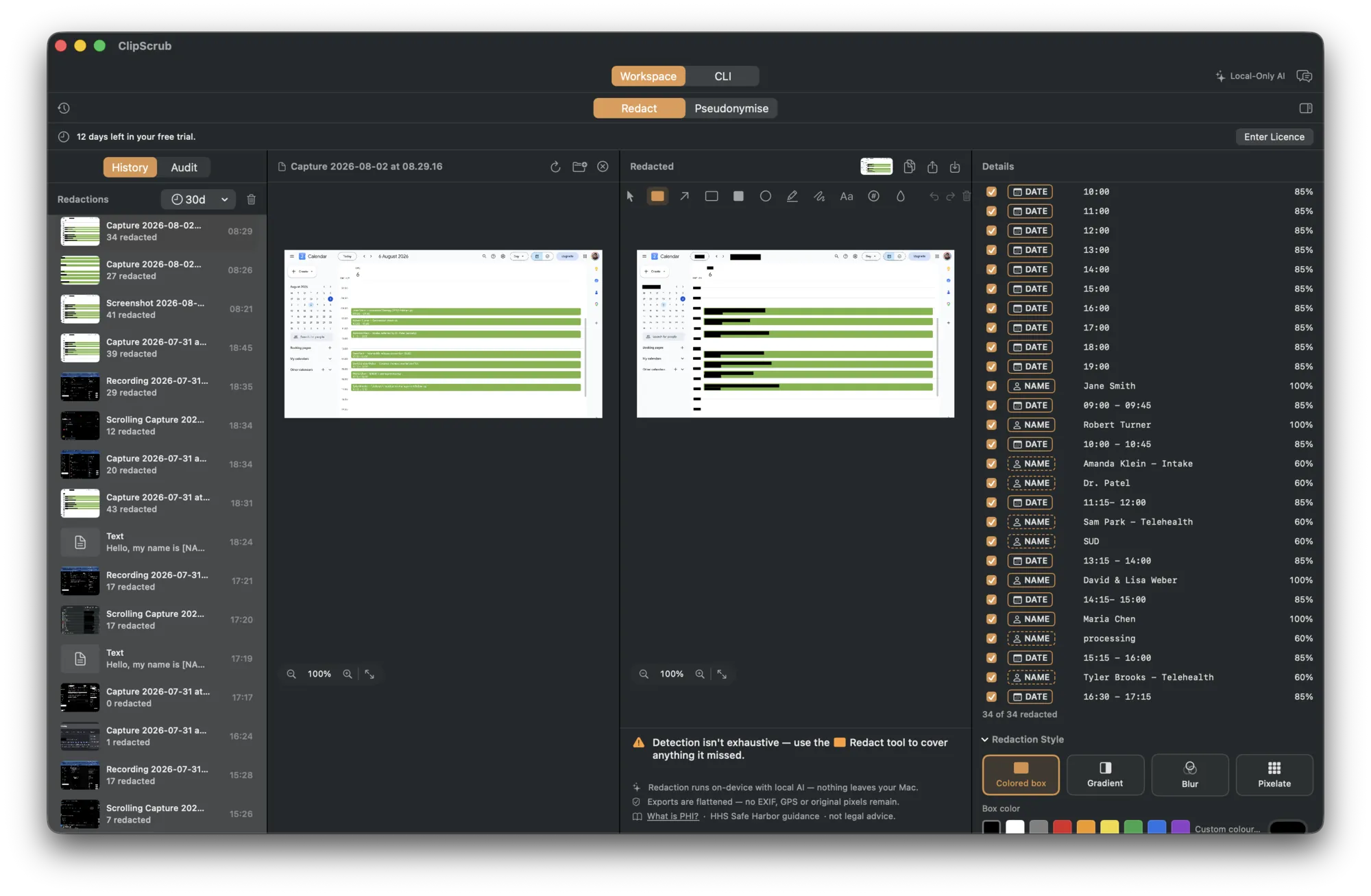
Wi-Fi off, one capture, every name covered.
A demo on a Mac with Wi-Fi switched off, to prove the redaction is local. A calendar goes in, 36 identifiers come back listed and covered, and the two areas missed get a box drawn over them by hand.
A redaction gate for your scripts and pipes.
The clipscrub command reuses ClipScrub's on-device engine, so nothing leaves your Mac. It also fails closed. On any error it writes nothing and exits non-zero, rather than pass the original text through.
Redact before the paste, not after.
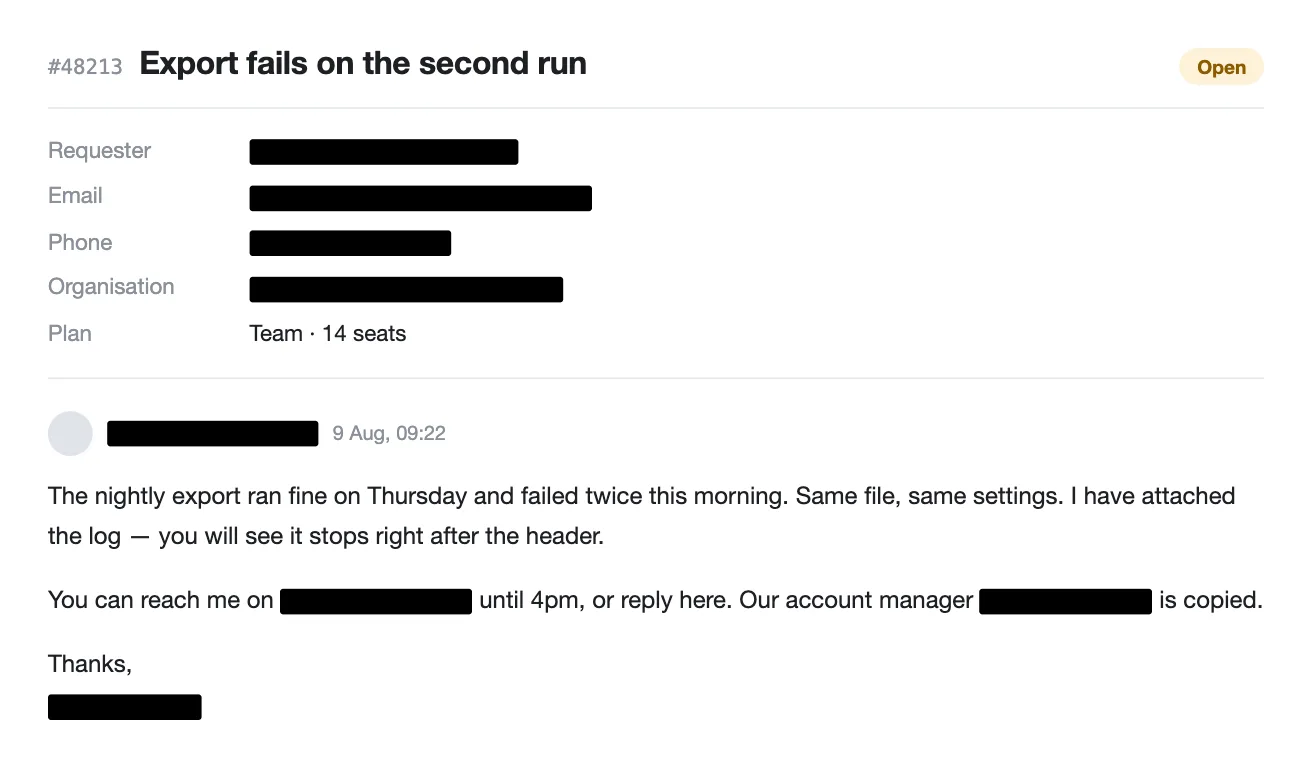
A support ticket, a log line, a row of a CSV — on its way into a cloud model or a tool with no BAA. Once it is pasted, it is gone. Send it through clipscrub first and the thing you paste has no one in it.
# the ticket you were about to paste into a chat window
pbpaste
Margaret Ellison (m.ellison@example.com, (859) 555-0142) — export failed again.

# the same ticket, through the gate
pbpaste | clipscrub
[NAME_1] ([EMAIL_1], [PHONE_1]) — export failed again.
# text: stdin → redacted stdout
echo "SSN 123-45-6789" | clipscrub

# redact the clipboard in place
pbpaste | clipscrub | pbcopy

# files, same format out — Word remains Word, a redacted PDF keeps its text
clipscrub --doc   in.docx out.docx
clipscrub --image in.pdf  out.pdf

# --report writes per-type counts to stderr, never the values
clipscrub --report < notes.txt

# --no-llm: skip Apple Intelligence, rules only — same result every run
clipscrub --no-llm < notes.txt
Pseudonymise to keep relationships in data.
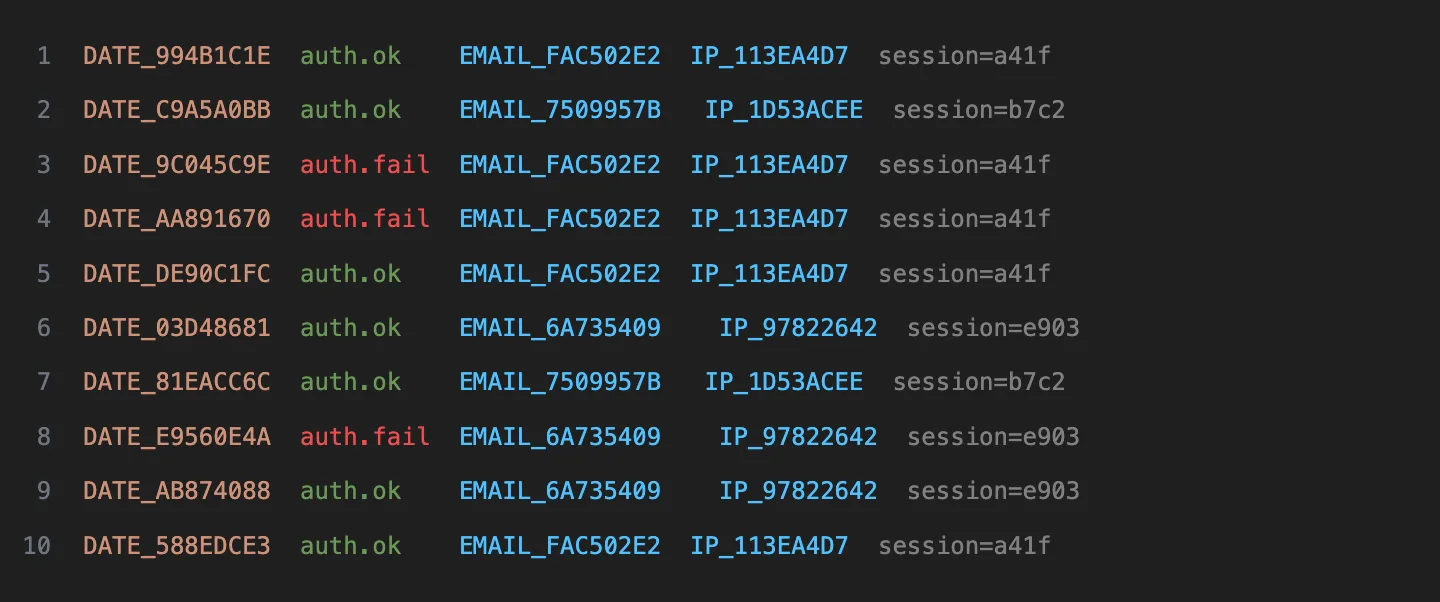
Redacting a dataset usually breaks it: every name becomes the same blank, and the rows stop adding up. --mode pseudonymise swaps each value for a token derived from it with a key kept in your login keychain. While that key is readable, the same email is the same token on that Mac — so you can group, join and count as before, without knowing who anyone is. If the keychain can't be read, the command says so and that run's tokens are one-off.
# two logins and a failure, from an auth log
clipscrub --no-llm --mode pseudonymise < auth.log
DATE_994B1C1E  auth.ok    EMAIL_FAC502E2  IP_113EA4D7  session=a41f
DATE_C9A5A0BB  auth.ok    EMAIL_7509957B   IP_1D53ACEE  session=b7c2
DATE_9C045C9E  auth.fail  EMAIL_FAC502E2  IP_113EA4D7  session=a41f
#                        lines 1 and 3 are one person — you can still say that
The app's engine, on the command line. Apple's on-device model catches what plain rules miss, but it needs macOS 26 (Tahoe) on an Apple silicon Mac with Apple Intelligence enabled. The CLI itself runs on macOS 15, so a Mac without those three runs the rules alone.
The CLI also does header de-identification for DICOM and EDF clinical files, header fields only. It does not touch burned-in image PHI, does not modify UIDs (identifiers that can point back to the original record), and can miss PHI buried deep in the file's nested data. Treat it as a head start, not the whole job.
The intelligence runs on your Mac.
Where the Mac offers it, ClipScrub uses Apple's on-device foundation model — 3 billion parameters, running entirely on your Mac — to catch the context-dependent identifiers that rules miss, like names and places buried in free text. Nothing is sent to Apple, and nothing is sent to us. Underneath, a deterministic engine (on-device OCR, pattern matching, face and barcode detection) always runs — so ClipScrub works with or without Apple Intelligence.
The app needs macOS 15 (Sequoia) or later. Apple's on-device model needs macOS 26 (Tahoe) on an Apple silicon Mac with Apple Intelligence enabled.
Drag to see what gets stripped.
Fictional samples. Drag the handle to see what ClipScrub removes.
The formats you care about.
Drop in a document or a screenshot. Record your screen, or drag in a clip you already have. In a screen recording, ClipScrub covers the names as they move. Scroll a client list and the boxes travel with the rows, instead of sitting still while the names slide out. Save a clip back as a recording, or as a GIF to drop into a ticket.
Redactedfolder inside it. Word, RTF and ODT go one at a time instead, so they keep their formatting. Every file the sweep takes on comes back in the report: redacted, not redacted with the reason, or not started. What the walk turned away is listed too, with the reason.Paste. Get it back redacted.
Drop in the text, image or file
Paste a note, drag in a screenshot or open a PDF or Word doc. It processes locally on your Mac — no connection required.
It finds the identifiers it can
ClipScrub scans for the Safe Harbor categories it covers — names, dates, contacts, record and account numbers, QR codes, faces — and marks each one it detects for your review.
Review, then get your redacted copy
You see exactly what was caught before anything is stripped. Adjust if you need to, then export the redacted copy — what you see is what you get.
It lives in the menu bar.
One shortcut grabs part of the screen. Another cleans whatever text you just copied. Both work in any app. Only the capture needs a permission — macOS asks for screen recording the first time. Redacting the clipboard needs none.
- 01
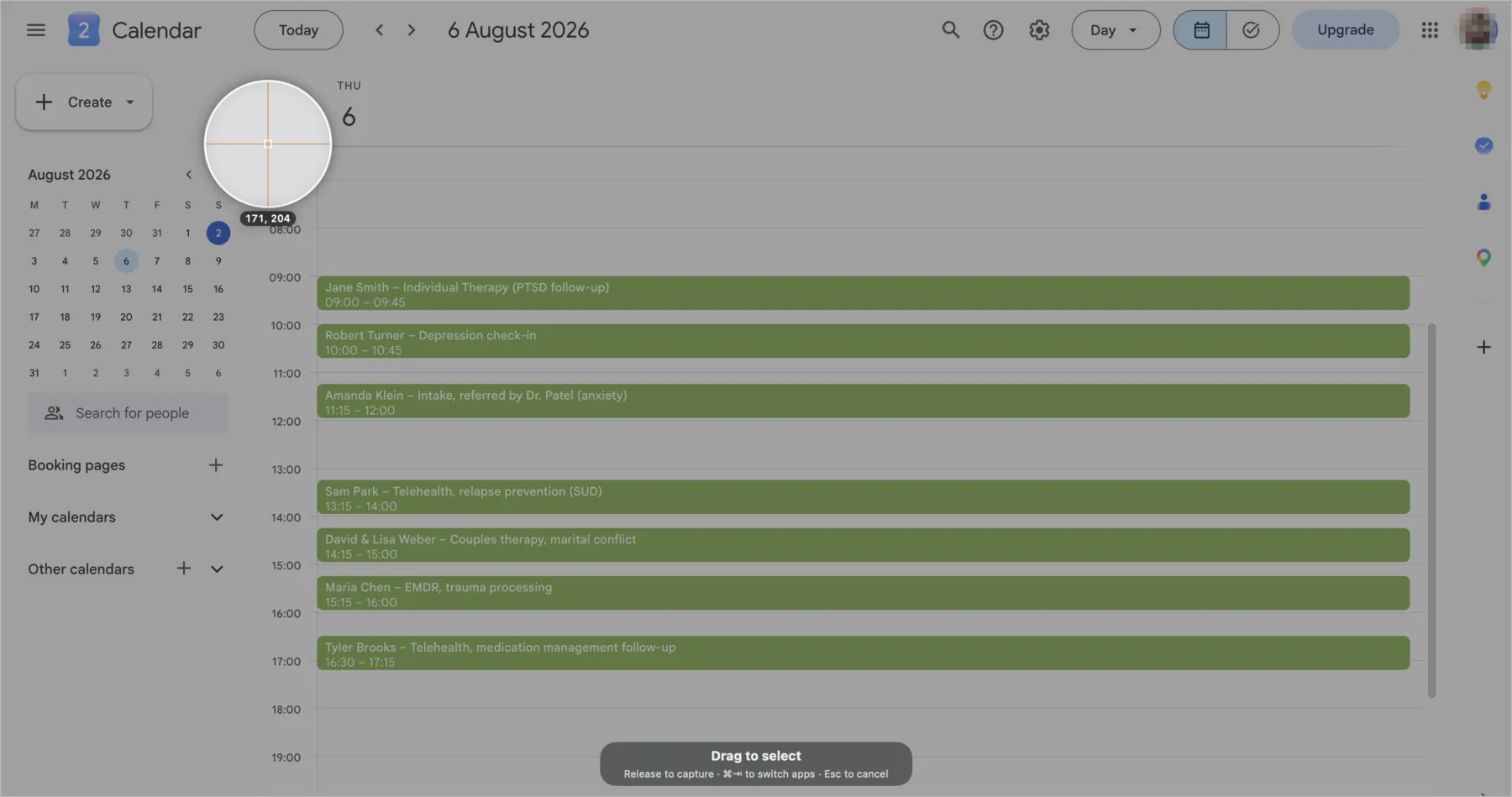
Select any part of the screen⇧⌘1
From the menu bar or the shortcut, in whatever app you are already in. The loupe magnifies the edge you are dragging to, so you clip where you meant to.
- 02
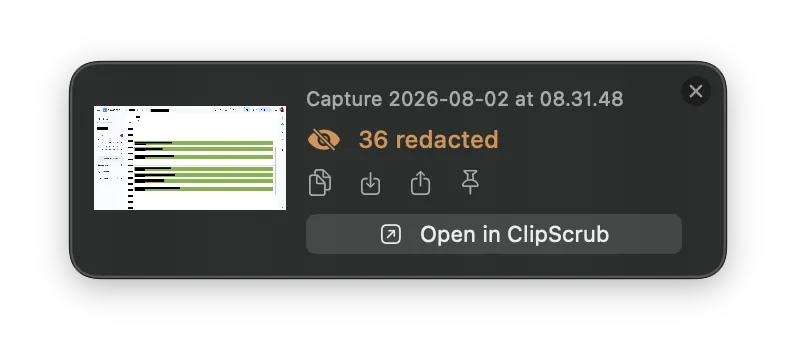
It comes back counted
The capture is scanned on your Mac and a small card tells you how many identifiers were covered. Copy it, save it, share it or pin it from there.
- 03
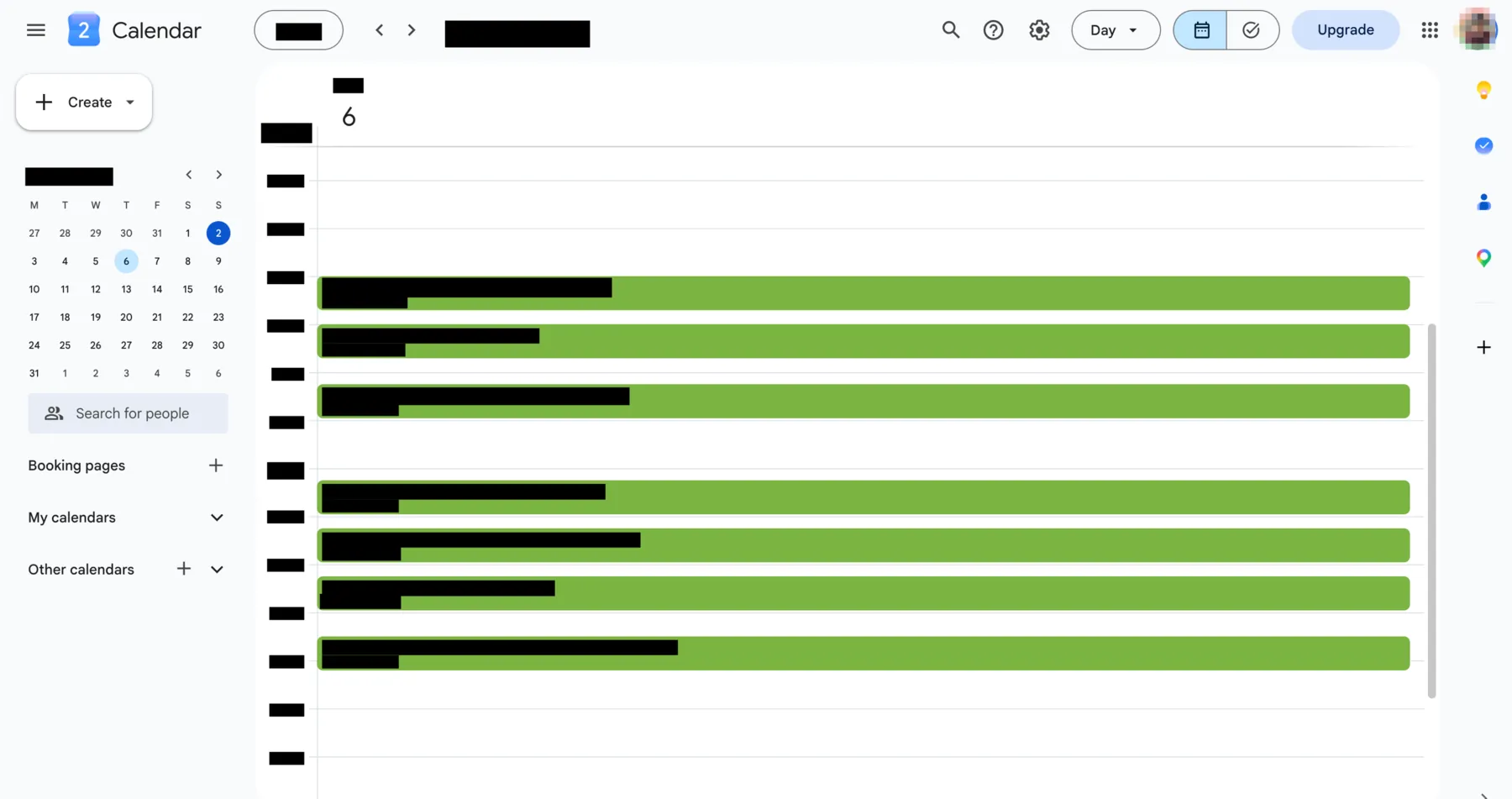
That is what you hand over
Names, times and dates are covered with solid black. Only the layout remains, so whoever you send it to can see you updated the calendar without seeing whose appointments they are.
Text you already copied⌥⌘R
Replaces the clipboard with the redacted version straight away — each identifier swapped for a typed placeholder like [NAME_1], so the text still reads as text. Want a different cut? Edit it in the panel and copy again. If ClipScrub cannot redact, it says so and leaves your clipboard alone.
![A small floating card reading '3 redacted, copied', showing patient details where the name and age have each been replaced by a typed placeholder, the first reading [NAME_1], with Open in ClipScrub and Copy buttons. The patient details are a fictional sample.](/app/clipboard-hud.webp)
ChatGPT doesn't need the names in your screenshot.
You paste a screenshot of a customer record into ChatGPT to ask what an error means. The whole record goes with it — the name, the email address, the account number. ClipScrub takes those out first, on your Mac.
For text you have copied, press ⌥⌘R. Your clipboard is replaced with a redacted version straight away.
For a screenshot, press ⇧⌘1 to take it with ClipScrub instead of ⇧⌘4. A card shows you what it covered, and you copy from there.
ClipScrub can miss things. Read what it gives you before you send it.
Claims you can verify yourself.
ClipScrub is a tool, not a compliance program — so this page only states what the tool does. Whether your workflow meets HIPAA is up to your organisation, not this app. Your files never leave your Mac — there is no server to send them to — so there is nothing for us to receive, store or hand over.
Runs offline
Detection and redaction work with no internet connection. Update checks are optional.
No content upload
Your files, clipboard data and licence key are never sent. Optional update requests carry no content.
Offline licence key
Keys verify against a public key inside the app — Ed25519-signed, with no licence server to call.
Audit trail
A record of what was removed, hash-chained against edits — and fingerprinted, so you can check the copy you shared is the one ClipScrub produced.
Open engine
The redaction engine and the clipscrub CLI are open source under Apache-2.0 — no network code, no third-party dependencies. The app around them is closed. Read it: github.com/tugboatcoding/clipscrub-core
It targets the direct identifiers these frameworks define — you remain responsible for compliance:
Buy it once. It remains yours.
ClipScrub is free to try for 14 days. Keep it with a licence — here is what it costs and what it includes, so there's nothing to work out later.
- Free trial
- 14 days, fully functional. No account, no card.
- What you get
- ClipScrub on up to 3 Macs, yours to keep.
- Updates
- Every update to ClipScrub 1.x is included, permanently. If there is ever a ClipScrub 2, that is a new purchase, discounted for existing licence holders. See what has shipped so far in the changelog.
- The licence
- An offline key — Ed25519-signed, checked on your Mac against a public key inside the app. No server, no activation, nothing revoked.
- Refund
- 30 days, no questions asked.
- Team or practice
- Running it on more Macs? Email hello@clipscrub.com and we can sort out a licence.
Once you own it, it keeps working.
A licence has no server behind it, so there is nothing for anyone to switch off. Your key is checked on your Mac against a public key inside the app — no expiry check, no activation call, no way for us to stop a licensed copy running. That is written into the terms. Before you buy, the free trial runs for 14 days, and a licence is what lifts it.
This is what you hand over.
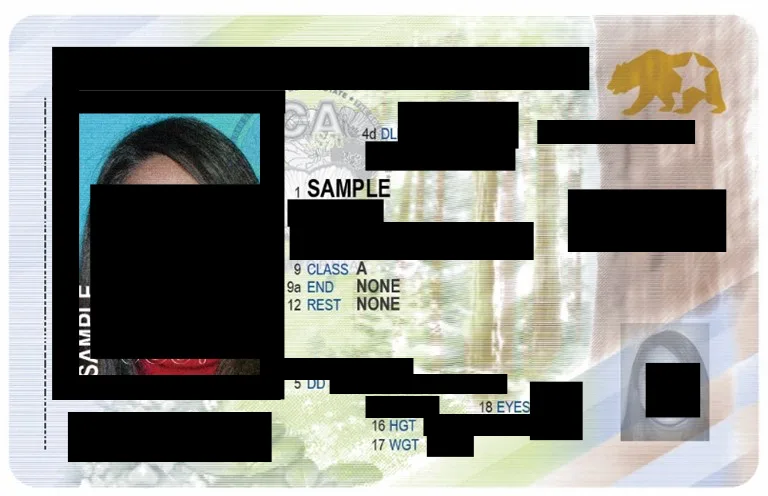

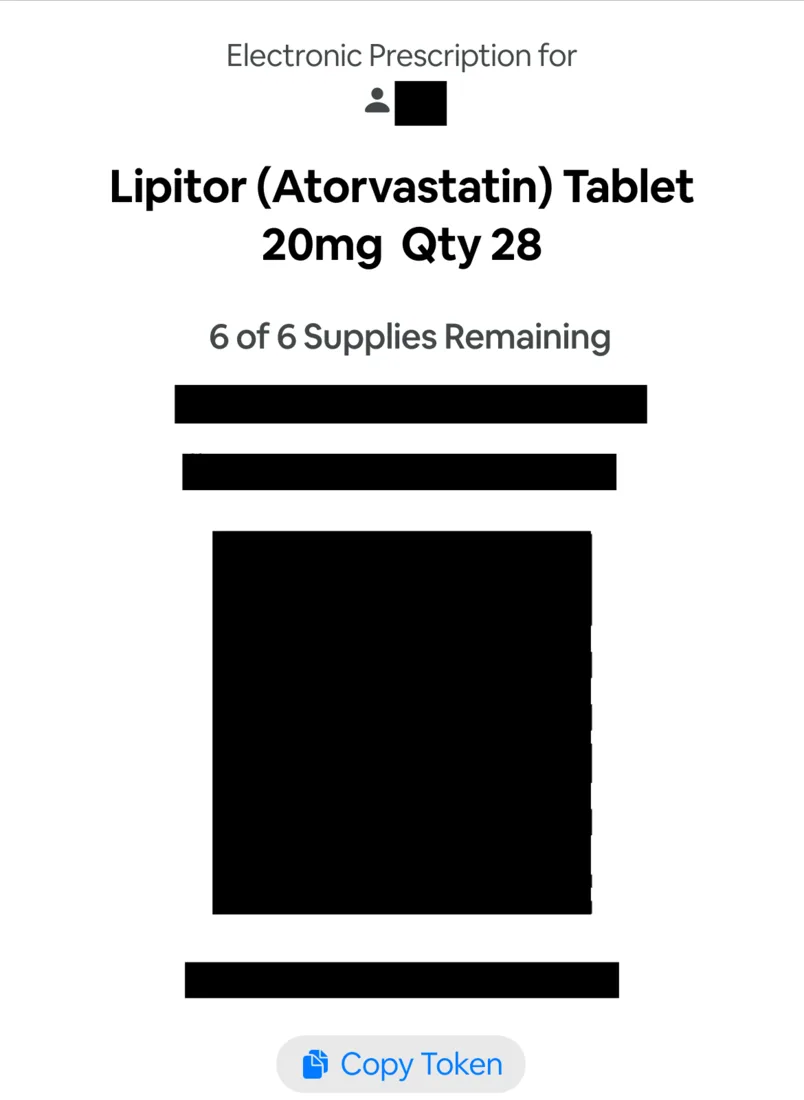
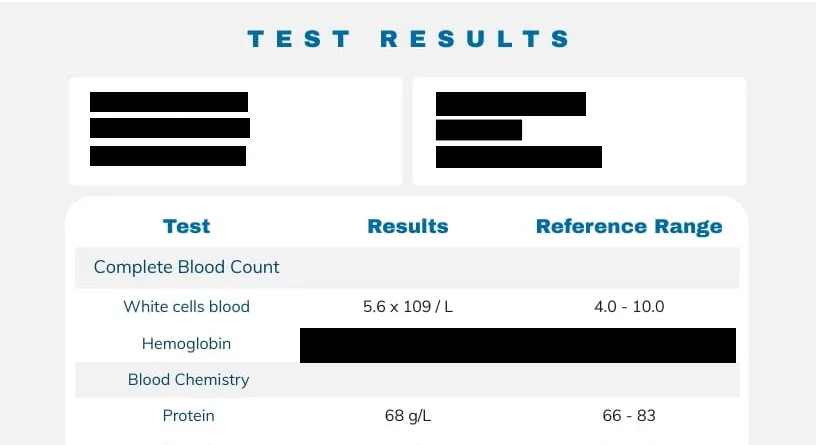
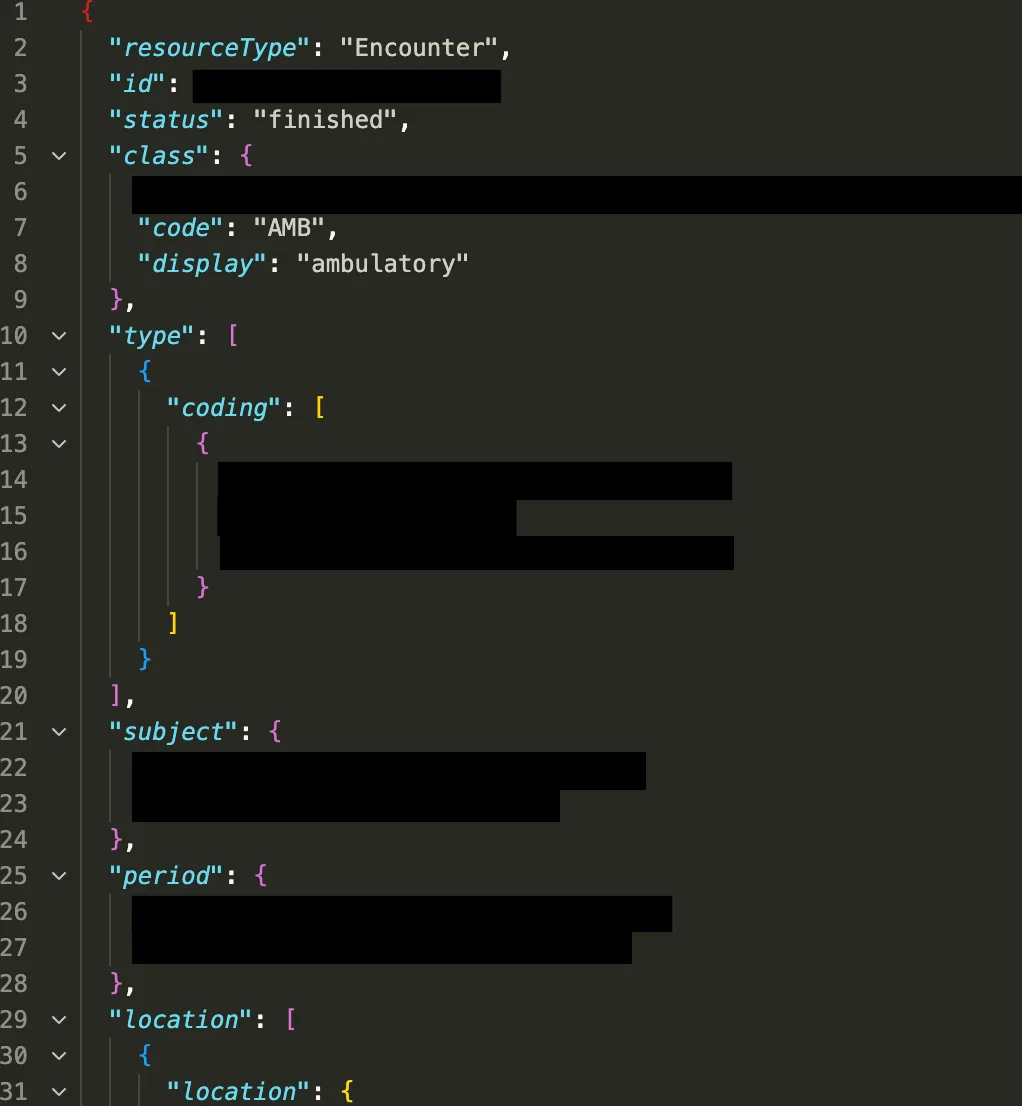
What each kind of tool does.
| Finds the identifiers for you | Removes, doesn’t cover | Nothing leaves your Mac | Mark anything by hand | Runs on | |
|---|---|---|---|---|---|
| ClipScrubon-device, detection built in | Yes | Yes | Yes | Images only | macOS 15 |
| Built into macOSyou find it, you cover it | No | No — the text remains under the box | Yes | Yes | Any Mac |
| Screenshot & annotation appsa box tool over the pixels | No | No — the box is a drawing | Yes | Yes | Varies |
| Cloud redaction servicesthe file is uploaded to be processed | Yes | Yes | No — the file is uploaded | Varies | Varies |
| Other Mac redaction appson-device, detection built in | Yes | Yes | Yes | Varies | Varies |
This compares approaches, not products — what a kind of tool does by design, rather than a feature list for any one app. Check any specific tool yourself. ClipScrub’s own rules are shaped for US identifiers plus generic patterns, and you can add your own — start from one of the seven bundled packs, edit any rule in it, and send a set to a colleague as a file.
Before you buy.
Does everything remain on my Mac?
Yes. Detection and redaction happen on-device and work fully offline. Your files are never uploaded. Optional update checks contact clipscrub.com without sending document contents or licence keys.
What does ClipScrub store on my Mac?
Redacted copies, kept encrypted. Your history is sealed on disk with AES-GCM under a key held in your Mac’s Keychain, device-only — originals are never written. While you record, the raw clip sits in a temporary file so it can be redacted, and it’s deleted once you export or close the card. The audit log is sealed too, under its own key. It keeps counts and fingerprints rather than the text that was removed, and alongside those it records the name of the file each entry wrote, which app the content came from and your Mac account name — so an entry can be tied to the work and to the person who did it.
Does it remove the data or just cover it?
Removes. The copy you export has the underlying content removed and flattened — not a black box drawn on top that can be lifted or copied out. Your original remains untouched. Only the copy you share is redacted. Solid (the default) and gradient discard the covered pixels. Blur and pixelate are opt-in because they can be partially reversed. Flattening a PDF doesn’t cost you the text. The words no box covered are written back invisibly where they were, as real text — you can still search for them, copy them, and a screen reader still picks them up. Each line is marked as a paragraph, so a screen reader reads it as text. The file sets no document language, it claims no accessibility standard, and we have not tested an export with VoiceOver. Anything removed is absent from that text, not hidden in it. Two exceptions. A PDF that was a scan has no text layer to keep, so it comes back as pixels only. And Settings ▸ General ▸ PDF export has a “Keep redacted PDFs searchable” switch, on by default — turn it off and every PDF the app exports comes back as pixels only.
Can I redact things myself, by hand?
On images, yes. Drag a box over anything else in a screenshot or a PDF page — a corner of a chart, a logo, something the model didn’t flag — and it’s removed with the rest. In plain text you’re working from what the engine found: you review every match and can keep or drop each one before export, but you can’t yet paint over a phrase it missed. What you see is what you get.
I'm here for GDPR or CCPA, not HIPAA — is this for me?
Yes. ClipScrub is built HIPAA-first, but it targets the direct identifiers these frameworks define — names, contact details, IDs, faces and more — in text, images and exports. The same on-device redaction applies to any personal data you need to remove. You remain responsible for compliance.
Does it work without Apple Intelligence?
Yes. A deterministic engine — on-device OCR, pattern matching, face and barcode detection — redacts without it. We do recommend turning Apple Intelligence on where you can: Apple’s on-device model catches the context-dependent identifiers that rules miss. Either way it remains on your Mac. The app needs macOS 15 (Sequoia) or later. The on-device model needs macOS 26 (Tahoe) on Apple silicon.
Do I need a Business Associate Agreement (BAA) with you?
No. A BAA is required when a vendor creates, receives or stores PHI on your behalf. ClipScrub runs entirely on your Mac and never receives your data — there’s nothing for us to sign a BAA over, because we never touch what you redact.
Is ClipScrub HIPAA compliant?
No — no software is. “HIPAA compliant” describes an organisation and its workflow, not an app. ClipScrub helps you find and remove identifiers on your own Mac. Whether your process meets HIPAA is your organisation’s determination to make.
Does it guarantee every identifier is removed?
No. Automated detection isn’t exhaustive — it can miss things or over-flag. ClipScrub is built so you review what it caught before you export, and you’re responsible for verifying the result before sharing. It’s an aid, not a guarantee.
What happens the first time I open ClipScrub?
macOS asks once whether you’re sure. That’s the standard confirmation for an app downloaded from the internet — click Open and you’re in. The app and the disk image are notarized by Apple and stapled, so your Mac can verify them with no internet connection. ClipScrub sits outside the App Store on purpose: the sandbox rules there forbid shipping the separate clipscrub command-line tool.
Can it redact a screen recording or only screenshots?
Both. Record your screen inside ClipScrub, or open a clip you already have — MP4 and MOV. Drag it onto the window, open it from Finder, or pick it in Capture ▸ Redact Video…. It reads four frames a second by default — you can raise that — and shows only the frames it read, so a box can never sit over a frame nobody checked. Boxes you draw by hand follow their content as the window moves or the page scrolls. What you export is the redacted copy. Your original is untouched.
Can I clean up a screenshot before I paste it into ChatGPT or Claude?
Yes. That is what ClipScrub is for. ClipScrub is a separate Mac app, not a plugin — it never connects to ChatGPT or Claude, and they never know it ran. You clean the screenshot up first, then paste the clean version yourself. For text you have copied, press ⌥⌘R: your clipboard is replaced with a redacted version straight away, and a panel lists what came out. For a screenshot, press ⇧⌘1 to take it with ClipScrub instead of ⇧⌘4, then copy the redacted version from the card it shows you. ClipScrub does not catch everything, so read the result before you paste it.
Can I redact a screenshot I have already taken?
Yes. Drag the PNG or JPG onto the ClipScrub window, paste it in, or open it from the file picker — the same as a PDF or a Word file. The window shows you every name, address and number it found, and you export the redacted copy from there. In Finder you can also right-click a PDF, a Word document or an image and pick ClipScrub under Open With. Set your own logo or wording in Settings ▸ General ▸ Your mark on exports and it appears in the bottom-right corner. Both start empty, so nothing is stamped until you choose it, and video and GIF exports are never marked. ⌥⌘R is for text you have copied, not for an image. For a screenshot, use the ClipScrub window, or take the next one with ⇧⌘1 and it is scanned the moment you take it.
Can I redact a whole folder at once?
Yes. Drop a folder onto the ClipScrub window or pick one from the file panel, and ClipScrub walks that folder and every folder inside it, sweeping the screenshots, PDFs and plain-text data files it finds. Word, RTF, ODT and HTML are turned away with a note pointing at Capture ▸ Redact Document to File…, because those keep their formatting only one at a time. Hidden files and app bundles are left out of the walk. Redacted copies are written to a Redacted folder alongside the originals, up to 1,000 files a run, and no full-size picture is kept once its file is written. Every file the sweep takes on comes back in the report: redacted, listed under Not redacted with the reason, or counted as not started if the run stopped early. Files the walk turned away are listed under Left alone, each with the reason. Nothing it looked at is silently skipped. Cancel partway and the files already written remain where they are; run it again and ClipScrub leaves the finished ones alone. A multi-page PDF comes back under Not redacted — open those one at a time.
Does it only read English?
No. On-device text recognition asks for English, Spanish, Japanese, Simplified Chinese and Arabic, and reads whichever of those your Mac supports — that set moves with your macOS version, so it is your Mac’s supported languages rather than a fixed list. The rules that match on format — an email address, an IP, a JWT, an SSN-shaped number, a dotted ICD-10 code, a domain — work on any of that text, and so do rules you write yourself. Rules keyed to an English label remain English: reading a language is not the same as translating a label. If your Mac supports none of them, ClipScrub falls back to English and says so in the system log rather than quietly reading less.
Can I share custom rules with my team?
Yes. Settings ▸ Rules exports your rules to a .clipscrubrules file. Whoever you send it to double-clicks it, or drags it onto that pane, and ClipScrub reports how many of the rules it imported. Seven starter packs ship with the app — US healthcare, Developer secrets, Contact info, GDPR (EU), CCPA (US), Financial and Infrastructure. Each is a set of formatted-identifier patterns, IBAN and VAT and passport MRZ and licence-number shapes, not a compliance service: importing one adds ordinary rules you can read, edit, switch off one at a time or delete. Import several and they stack.
What does the licence key look like?
An offline, Ed25519-signed key — shape CLIP1.<base64url(payload)>.<base64url(sig)> — verified on your Mac against a public key inside the app. No server, no activation.
Will the redacted clip look and sound like the original?
The clip will look choppier, and it will sound the same. ClipScrub reads four frames a second by default and shows only the frames it read, holding each one until the next arrives. You can trade time for smoothness: ClipScrub asks before your first recording, and Settings ▸ Recording ▸ Redaction detail switches between them afterwards — reading three times as often looks far smoother and takes about three times as long, roughly eight minutes for a one-minute clip against three. The export keeps the original’s length and frame rate, so nothing drifts out of time — but the picture steps rather than flows, and beside the source it looks choppy. That is the price of never showing you a frame no detector looked at. The export is re-encoded to H.264 in a .mov whatever you started with, so a high-quality source loses a generation. The sound is copied across as it is: ClipScrub covers the picture, not the audio, so a name spoken out loud remains in the file you export. A clip you record inside ClipScrub has no sound at all, so nothing remains in the file.
Can I turn the audit log off?
Yes — Settings ▸ Redaction ▸ Keep an audit log. It is on when you install ClipScrub, and while it is on every redaction, copy and export in the window writes an entry. Switch it off and nothing further is written. Entries already recorded remain: the Keep for menu does not reach them, because that prunes the redactions kept in your history, so clearing the log in the audit pane is what empties it. Download the log as JSON from the audit pane if you need to keep the record before you empty it. Clearing starts a fresh chain whose first entry says a wipe happened and when — that entry is written even with logging off, because the one event you cannot hide is the one that destroys the record. An entry that wrote a file records that file’s name, and a filename can carry a patient’s name on its own — worth a thought before you name one. The clipscrub command-line tool keeps its own separate log, off until you switch it on.
Something else?
Email Mario at hello@clipscrub.com. A person reads it.
I have redacted enough screenshots and JSON files by hand for one lifetime.
Hi, I'm Mario. I spent years building software in health tech, inside an organisation that worked to HIPAA-aligned handling rules, so the habit of thinking about where a record goes before you send it is not a new one for me. ClipScrub does that work for you, right on your Mac — the tedious part becomes automatic, and the sensitive part never has to travel. If that resonates, give it a try.
I build it in the open, at @logicalicy.
Start with a free 14-day trial.
Download it and use everything for 14 days — every tool works, no account needed. When the trial ends, a licence keeps it going. Leave your email and we'll tell you when there's a new version.