How to redact a PDF on Mac without Adobe.
Find sensitive text, review every match and export a redacted PDF from your Mac.
Try ClipScrub freeBuy once — $29
Redact a PDF on Mac in four steps
- Drag the PDF onto ClipScrub. Finder can also open the PDF through its Open With menu.
- Review every detection. Drag a Redact box over sensitive text that ClipScrub missed.
- Choose Save. Select a new filename for the redacted PDF.
- Search the exported copy for each removed value before sharing the file.
Flattened pages. Safe text remains searchable.
ClipScrub rasterises every exported page. Text inside a redacted area cannot remain selectable. For a PDF that already has a text layer, ClipScrub writes back only the safe text.
Scanned PDFs remain image-only.
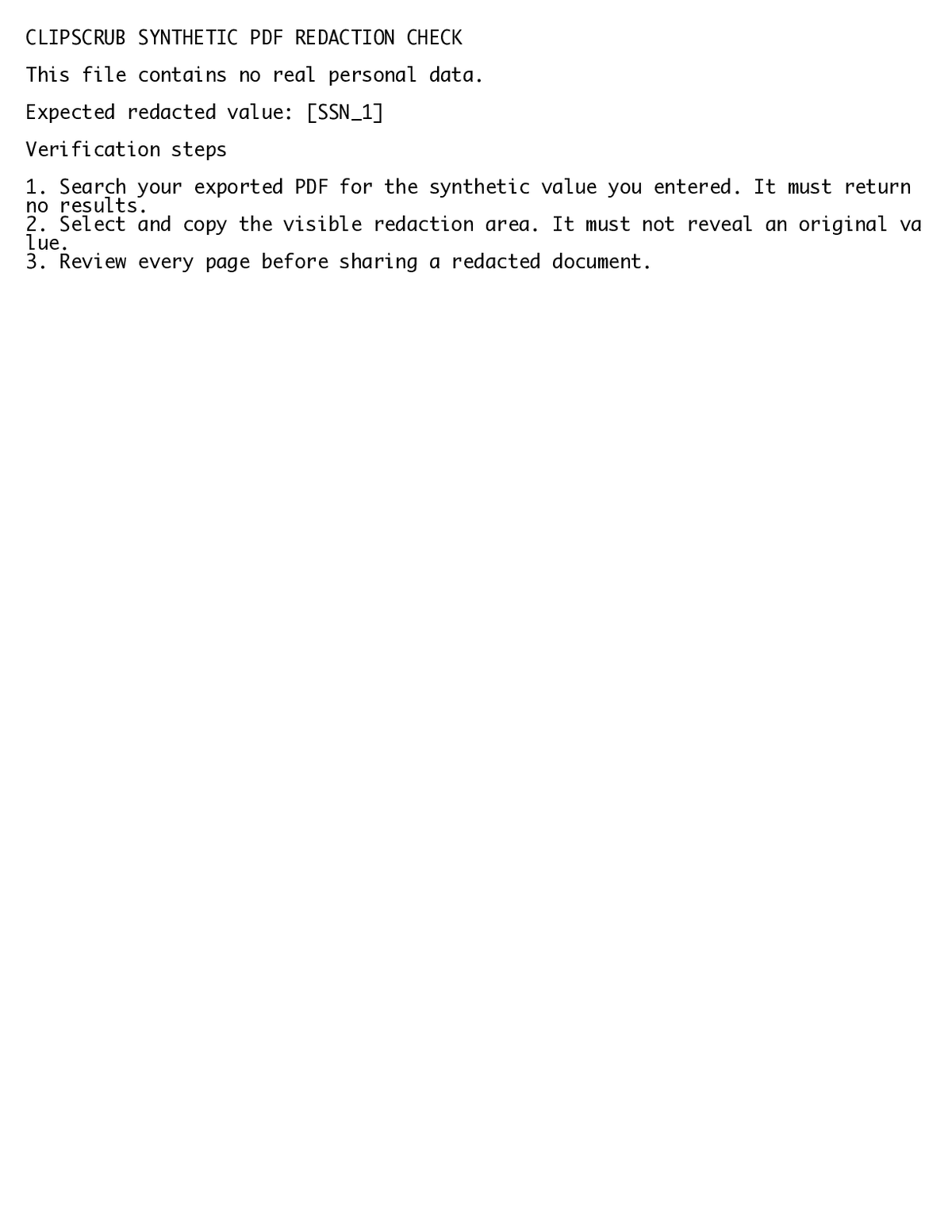
See a redacted PDF export
This synthetic safe-output PDF contains a typed token in place of a fictional identifier. Open it, search it and try copying from it.
What to check
- Search for the value you expected to remove.
- Copy the visible redaction area into a blank document.
- Review every page before sharing the PDF.
The sample contains fictional information. The sample demonstrates the export format, not detection accuracy.
Check the exported PDF before sharing
Search the exported PDF for every value you removed. Then copy each redacted area and paste it into a blank document. Neither check should reveal the removed text.
Redact a PDF in Preview on Mac
Mac Preview has a Redact tool and it works. ClipScrub adds automatic detection, a review step and a flattened export.
Detection can miss sensitive text. Review the exported PDF before sharing it.